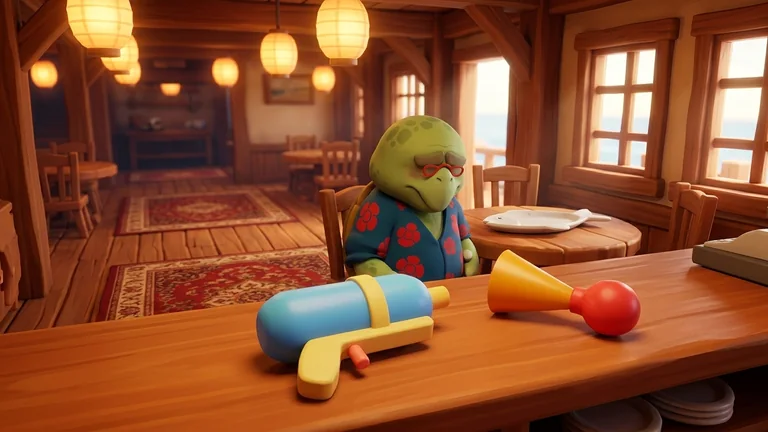
PAO PAO Steam Deck & Controller Support
Steam Deck status, controller support tags, in-game gamepad and keyboard settings, and developer control patch notes for PAO PAO.

PAO PAO carries Full controller support and a Gamepad Recommended tag on Steam alongside Keyboard and Mouse play. Valve has not assigned a Steam Deck compatibility rating yet, though updates added Steam keyboard entry for lobby codes and smoother controller menu navigation.
Steam Store Controller & Input Support
On Steam, the game targets 64-bit Windows with Full controller support, Gamepad Recommended, Custom Volume Controls, Stereo Sound, and Steam Cloud support. Inside the in-game “Settings” menu, players can check control keys and gamepad layout across both “Controller” and “Keyboard and Mouse” play.
| Feature | Store or menu status | Player detail |
|---|---|---|
| Controller support | Full controller support, Gamepad Recommended | Supported across standard PC gamepads and additional console controllers |
| Input modes | “Controller”, “Keyboard and Mouse” | Inspect key bindings and gamepad layout inside “Settings” under “Controls” |
| Steam Deck rating | No rating assigned yet | Steam Deck compatibility is unrated, though the first major demo patch added Steam keyboard entry for lobby codes |
| Audio options | Custom Volume Controls, Stereo Sound | Individual volume options for Master, Music, Effects, Ambient, Microphone, and Speaker |
| Cloud saves and PC requirements | Steam Cloud, 64-bit Windows | Lists 4 GB RAM minimum (8 GB recommended) and 14 GB available storage |
See our crossplay and platforms guide for platform details, or check our save file and demo transfer guide for cloud save info.
Steam Deck, Controller & Keyboard Patch History
Developer updates on Steam from the early demo through Early Access addressed controller navigation, Steam Deck lobby text entry, radial tool switching, and keyboard kitchen controls.
| Update | Release stage | Input and navigation changes |
|---|---|---|
| Pao Pao Demo - Patch #1 | Demo | Fixed gamepad input problems during the magnet minigame |
| First major demo patch | Pre-release demo | Added lobby code entry via the Steam keyboard on Steam Deck, fixed modal windows on DualShock 4, improved controller navigation, resolved controls locking up after crop harvests, and added short-press quick tool switching plus category icons on the tool wheel |
| Second Patch | Pre-release demo | Further improved gamepad navigation alongside new voice chat settings |
| Update 1.0.2 | Early Access | Smoothed out kitchen appliance interactions for easier keyboard use and fixed cutting board interaction bugs |
Setup & Lobby Tips for Handheld and Gamepad Play
- Check your bindings and reset when needed: Open “Settings” and visit “Controls” or “Control Scheme” to review your key bindings and gamepad layout before a busy shift, and use “Reset Controls” to return to defaults if a layout feels off.
- Type private room codes with the Steam keyboard: In the “Co-op” screen, pick “Enter Code” on the “Lobby Code” prompt and use the Steam keyboard on Steam Deck or gamepad to enter a host’s code; see our co-op and multiplayer guide for Steam vs EOS lobbies and voice chat options.
- Switch tools with a short press on the radial wheel: Tap the tool wheel button briefly to bring your previous item back into your hand, or hold it to rotate items within one slot—handy when switching between
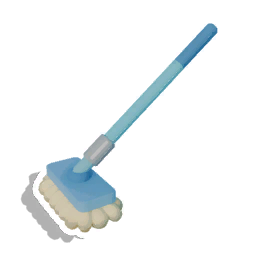 Old Mop,
 Fire Extinguisher, and
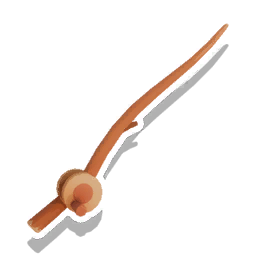 Beginner’s Fishing Rod or changing town vehicles. The tool wheel also displays category icons, and our special customers and counter tools guide covers the dining-room tools.
- Dial in handheld display and audio settings: Use “Display” options such as “Resolution”, “Quality Presets”, “FPS Limit”, and “Windowed Fullscreen” or “Exclusive Fullscreen” to fit your screen, and balance “Master Volume”, “Music Volume”, “Effects Volume”, and “Ambient Volume” under “Audio”.